Set up your mobile app
Follow the four-step setup guide on the Dashboard, from syncing products to designing and publishing your app.
When you open Casa Mobile App Builder from your Shopify admin, the Dashboard shows a setup guide with four steps. A ring in the top right shows how far along you are, and you can come back to any step with Edit.
1. Add products and collections to the sales channel
Your app shows only the products and collections that are available on the Casa Mobile App Builder sales channel. Draft and archived products aren't counted. This step shows how many active products and collections the app can see; if any are missing, make them available on the sales channel from the product or collection page in Shopify.
2. Design your app
This opens the builder, where you choose your app name or logo for the header, set your colors and build the home screen from blocks. To start from your website instead, copy your online store's colors, logo and home page in one click (see Copy your online store's design). See Brand colors, header logo, side menu and bottom bar and Design your home screen with blocks.
3. Preview your app
Load your store in our demo app on an Android phone to see the real thing before you publish. See Preview your app on your phone.
4. Distribute
Fill in your Google Play and App Store listings and invite us to your developer accounts, and we submit the app for you. See Publish your app.
Upload your app icons
Before you can publish you also need three icons, which you upload on Settings → App Icons: a 512×512 px launcher icon and 1024×1024 px Android and iOS splash icons, each PNG or JPG up to 1MB. Images upload as soon as you pick them.
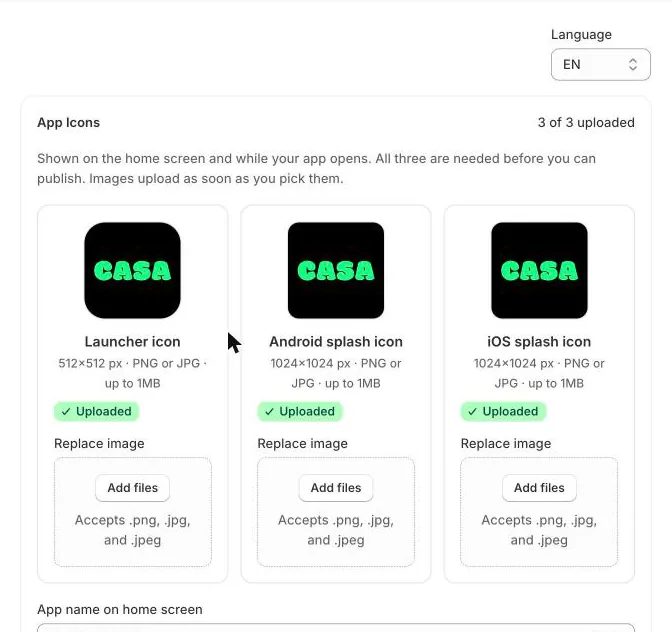
Below the icons, App name on home screen sets the name shown under your icon on the phone. Keep it short: about 12 characters fit before phones cut it off.
Your package name
Your app's unique ID on Google Play and the App Store, such as com.yourstore.app. We pick one from your store's name; you can change it on Settings, under App name on home screen.