Copy your online store's design
Start your app from your website: copy your theme's colors, logo and home page banners, product lists and collections in one click.
Instead of designing your app from scratch, you can copy your online store. The app reads your published theme and builds the app's design from it: your colors, your logo, and your home page sections in the same order as on your website.
Copying is optional: new apps start with a default home screen built from your products and collections. You can copy your website whenever you like, and again later, for example after you change your theme.
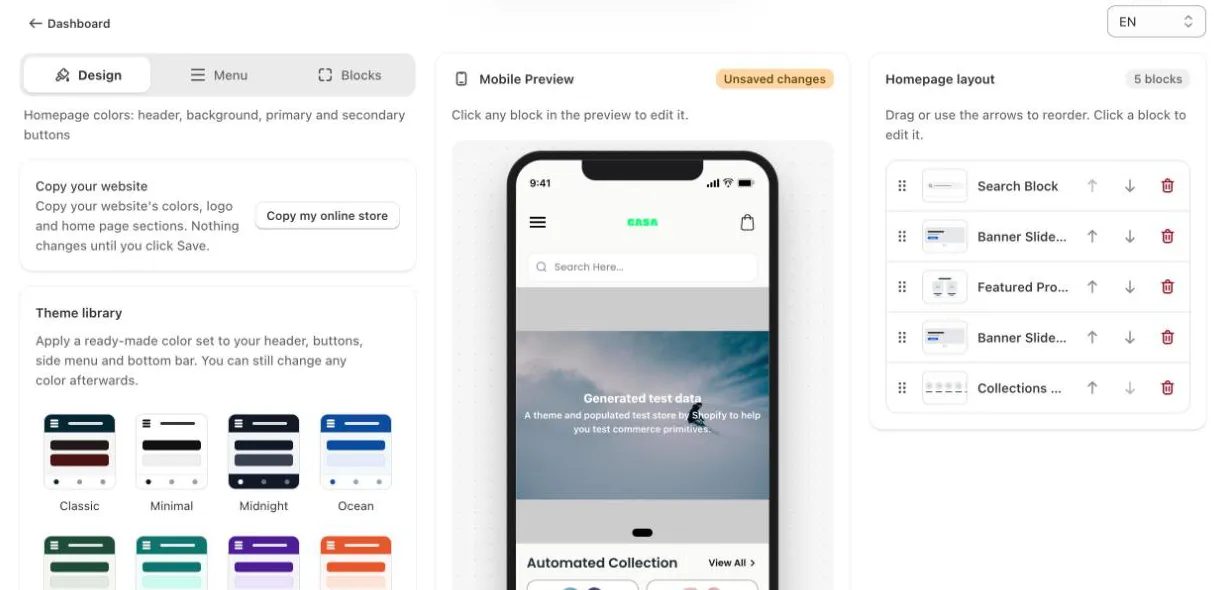
Copy your website
- Open Design in the app's menu and stay on the Design tab.
- Under Copy your website, click Copy my online store.
- Check the result in the Mobile Preview and change anything you like.
- Click Save. Nothing changes in your app until you save, and Discard brings back your previous design.
What gets copied
- Colors: your header, background and button colors. The side menu and bottom bar get matching colors. The app keeps a light background so product text stays readable.
- Logo: the logo from your theme's header, if it has one.
- Announcement bar: the first announcement in your theme's header.
- Slideshows and image banners become a Banner Slider, with their heading, text and button. Buttons that link to a collection or product open it in the app.
- Featured collections and product lists become a Featured Products block for the same collection.
- Collection lists become a Collections block.
- Columns with images become a Portfolio Slider. Testimonials and text-only columns become an Information Slider.
- Rich text sections become a Header block with their heading.
- Logo lists become Featured Brands.
A Search bar is always added at the top. Sections the app has no block for, such as videos, newsletter sign-ups, contact forms, blog posts and app sections, are skipped, and a message tells you how many. Sections that point to a collection that no longer exists, or have no image yet, are skipped too.