Design your home screen with blocks
Add banners, product lists, collections, search and shoppable videos, then reorder them with a live preview.
Your app's home screen is a stack of blocks. Open Design in the app's menu and choose the Blocks tab. The page has three columns: the block library on the left, a Mobile Preview in the middle, and your Homepage layout on the right.
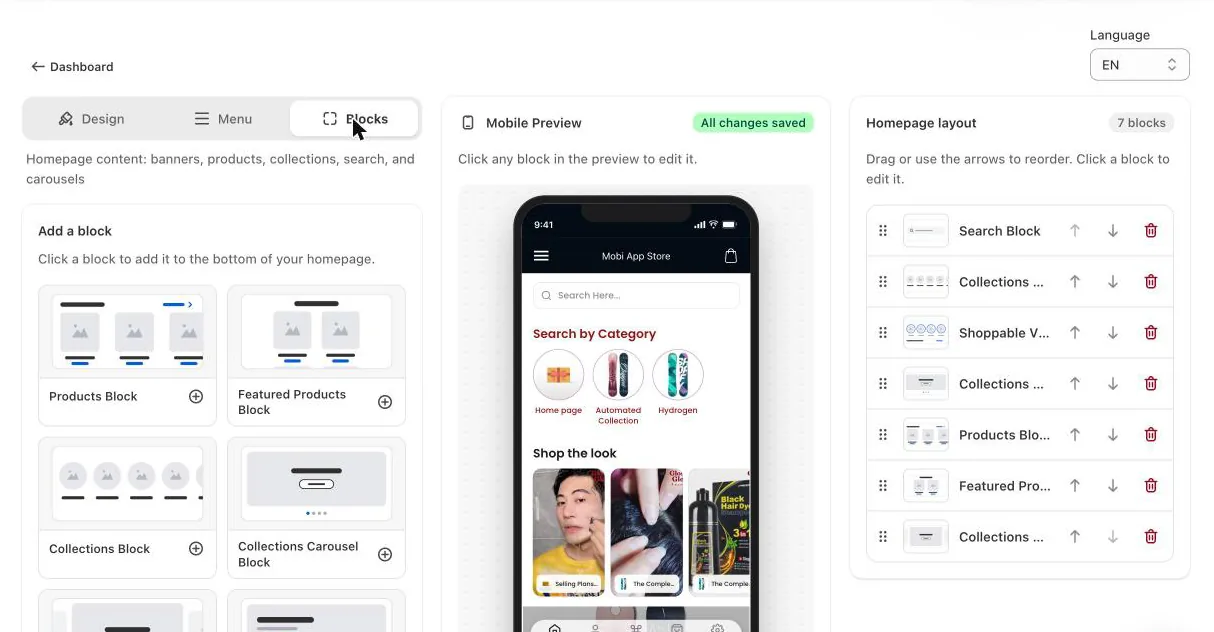
Add a block
- On the Blocks tab, find the block you want under Add a block.
- Click it. It's added to the bottom of your home screen.
- Fill in its settings (for example, choose which collection or products it shows).
Available blocks include:
- Search: a search bar at the top of the home screen.
- Banner and Banner Slider: large images with an optional button that opens a product or collection.
- Products and Featured Products: a row or grid of products you pick.
- Collections, Collections Carousel and Collections Slider: let shoppers browse by category.
- Shoppable Videos: short videos with tagged products (see below).
- Announcement Bar: a one-line strip for messages such as free shipping (see below).
- Header, Horizontal Separator, Timer, Information Slider (testimonials), Featured Brands and Portfolio Slider.
Edit, reorder and remove blocks
- Edit: click a block in the Mobile Preview or in Homepage layout to open its settings.
- Reorder: drag a block by its handle, or use the up and down arrows.
- Remove: click the red trash icon.
Changes save automatically; the preview shows All changes saved when they're stored. Your published app picks them up the next time customers open it, with no app update needed.
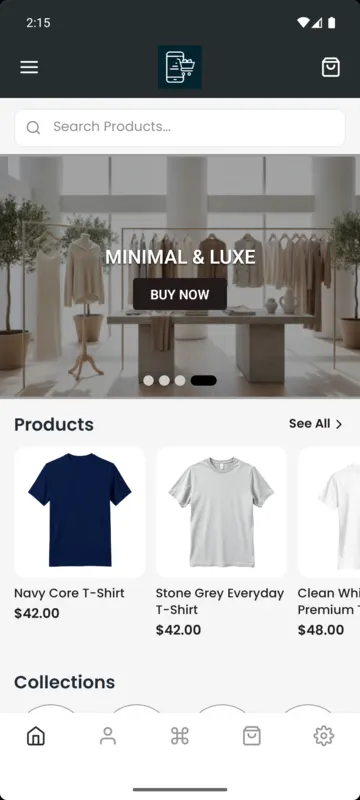
Add shoppable videos
The Shoppable Videos block shows short vertical videos, either as story circles or as an autoplaying carousel. Shoppers tap a video to watch it full screen and can add the products you tagged straight to their cart.
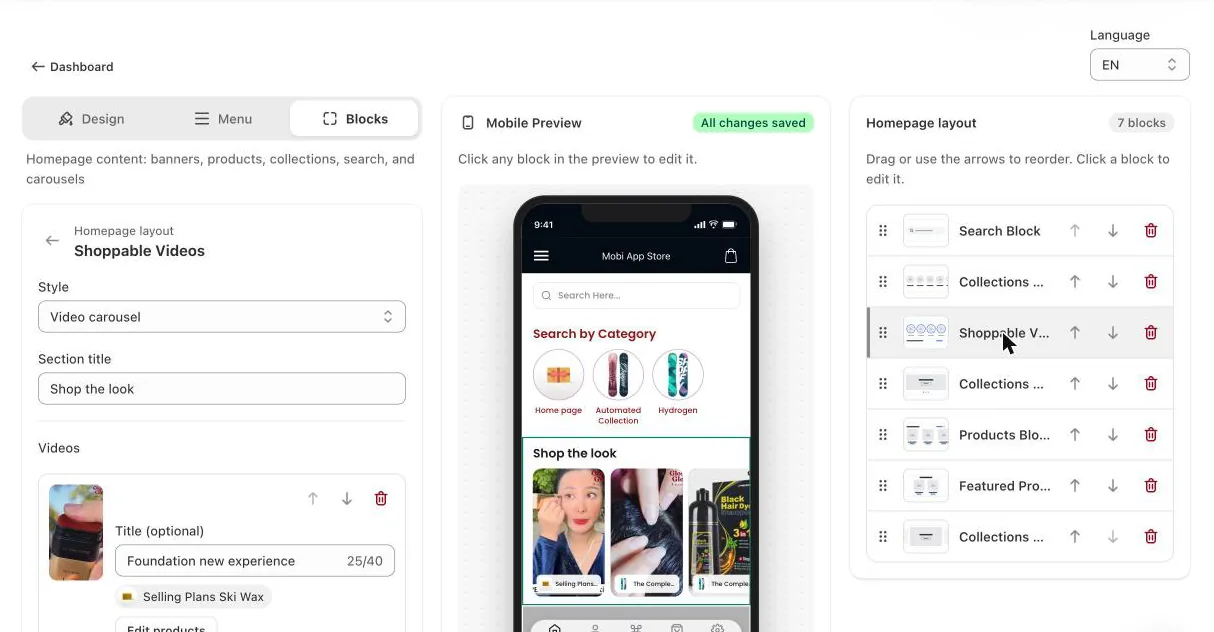
- Add the Shoppable Videos block and choose a Style: Stories (circles) or Video carousel.
- Give the section a title, such as "Shop the look".
- Click Add video and upload an MP4 or MOV, up to 90 seconds and 250MB. Vertical (9:16) videos look best.
- Use Tag products to attach the products shown in the video.
Videos are stored in your store's Shopify Files. Shopify processes each one after upload; a video shows Processing until it's ready, and only ready videos appear in the app.
Add an announcement bar
The Announcement Bar block shows one line of text on a colored strip, such as "Free shipping in India | International: above $180". Drag it to the top of your layout so it's the first thing shoppers see.
- Write your message under Text, and set the Background color, Font color, Font size and Bold text.
- Short text sits centered. Text too long for one line scrolls sideways continuously, like a ticker; Scroll speed sets how fast.
- Shoppers who turned on reduced motion on their phone see the text without scrolling.