Publish your app to Google Play and the App Store
Fill in your store listings, add a privacy policy, and track your submission from Pending to Published.
Open Store listings in the app's menu. There's one listing for Google Play and one for the Apple App Store. Each has its own requirements, and you can fill them in any order.
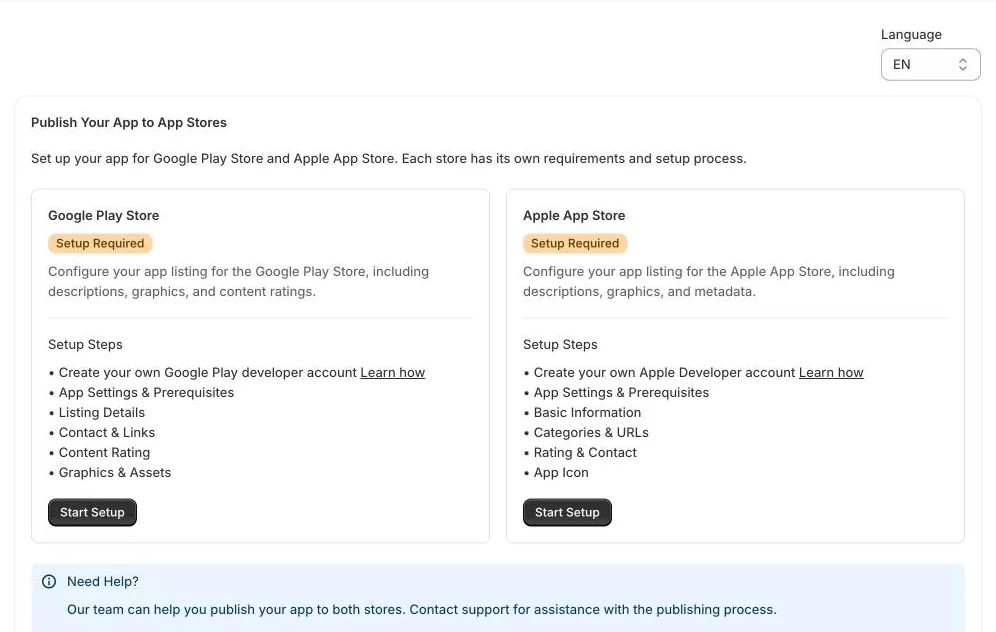
Before you start
- Create your developer accounts and invite us.
- Finish your header logo and blocks, and upload your app icons. See Set up your mobile app.
- Add a Privacy Policy and Terms and Conditions under In-app pages. Both stores require them.
Fill in a listing
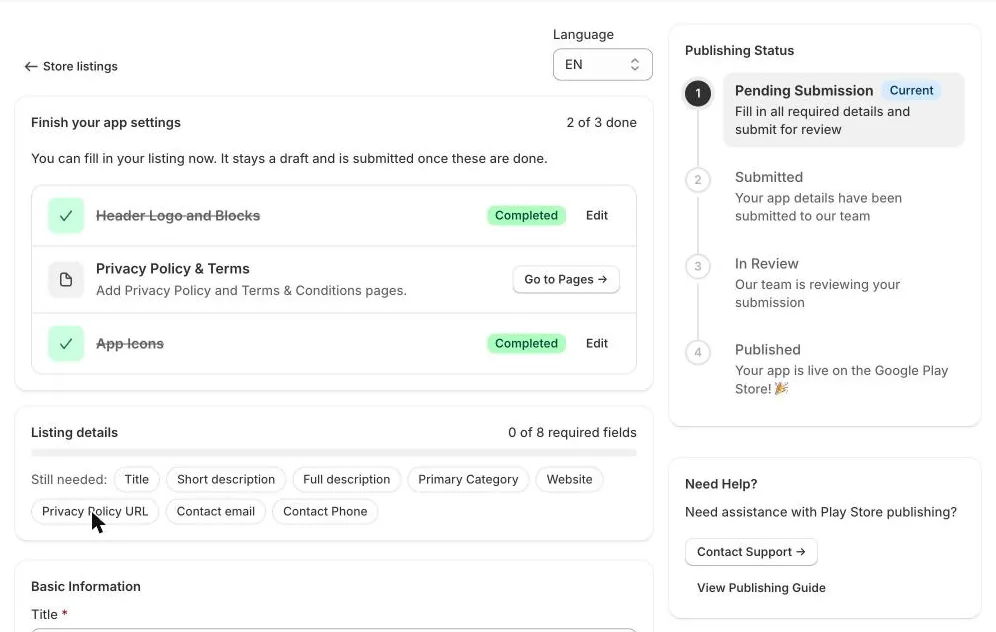
- Click Start Setup on the store you want to set up.
- Check Finish your app settings at the top. Anything not yet Completed has a button that takes you to it.
- Fill in the listing. Listing details counts the required fields and lists those Still needed.
- Google Play needs a title, short and full descriptions, category, website, privacy policy URL, contact email and phone. The App Store also needs keywords, a copyright line and a support URL.
Your listing stays a draft and is submitted once all your app settings are done.
Add your privacy policy and terms
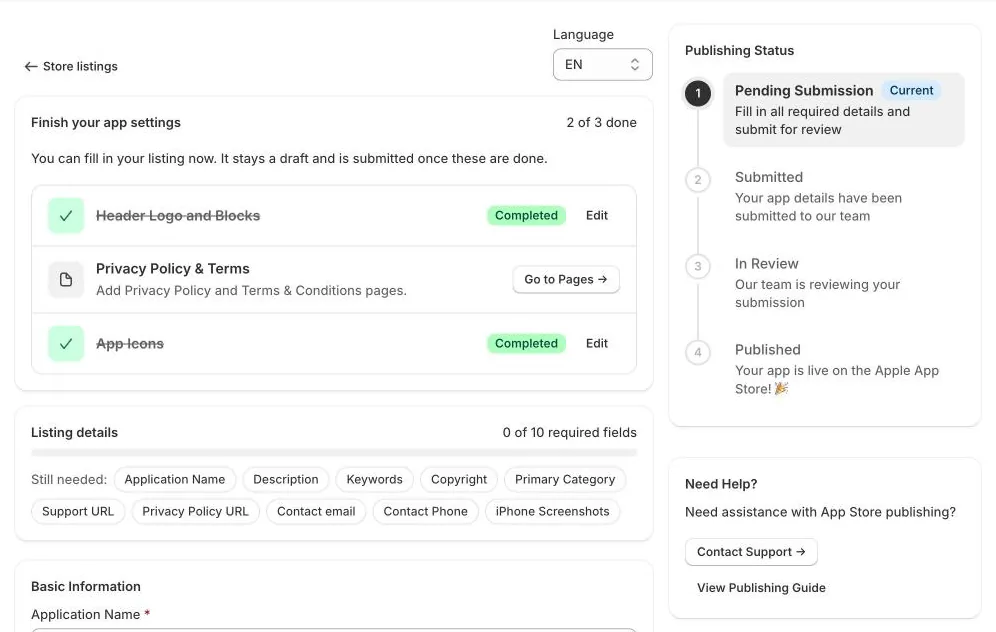
Under In-app pages, open Privacy Policy and Terms and Conditions. For each, choose Text and write the page in the editor, or choose External Link to point to a page on your website. Use Add New Custom Page for other pages, such as shipping or returns; they appear under Pages in the app's side menu.
Track your submission
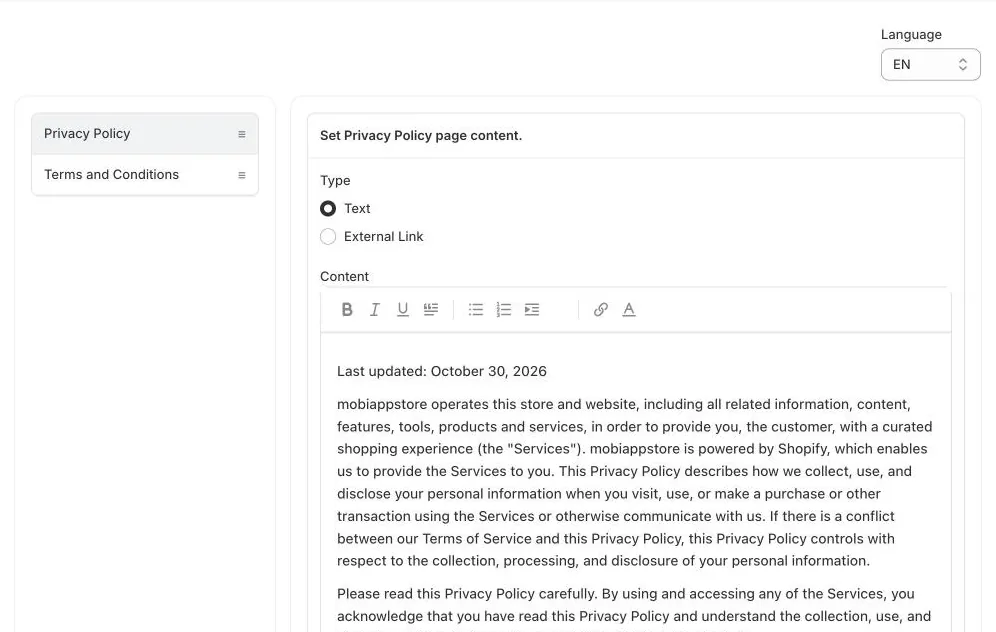
- Pending Submission: fill in all required details.
- Submitted: your details have reached our team.
- In Review: we're preparing your app and the store is reviewing it.
- Published: your app is live. We'll email you the download link.
Apple usually reviews apps in 5–7 days (longer around holidays). Google Play usually takes 2–3 days.
Do I need to resubmit after changes?
No. Design, blocks, colors, text, settings, images and content update in your published app automatically, the next time customers open it.
Next articleTrack app sales and analytics →