Set up Firebase for push notifications
Create a free Firebase project, add your Android and iOS apps, and upload your private key so you can send notifications.
Push notifications are delivered by Firebase Cloud Messaging, Google's free messaging service. You set up your own Firebase project once, in three steps, and the Push notifications page shows exactly what's still missing. It takes about 15 minutes.
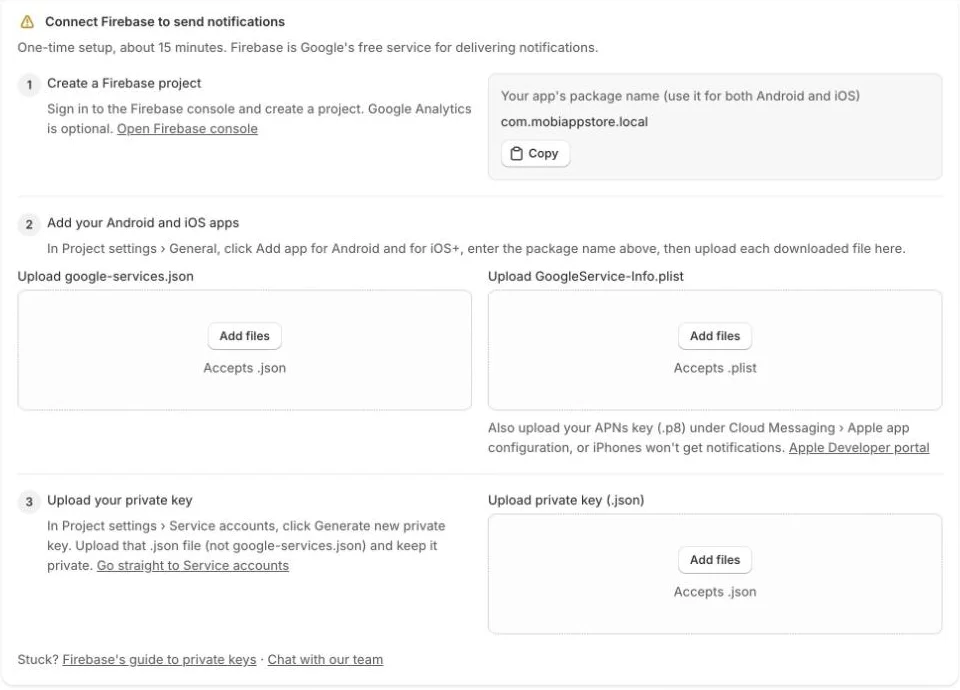
You need a Google account, and for iPhones an Apple Developer account. Keep the Push notifications page open in one tab and the Firebase console in another.
1. Create a Firebase project
- Open the Firebase console and sign in with your Google account.
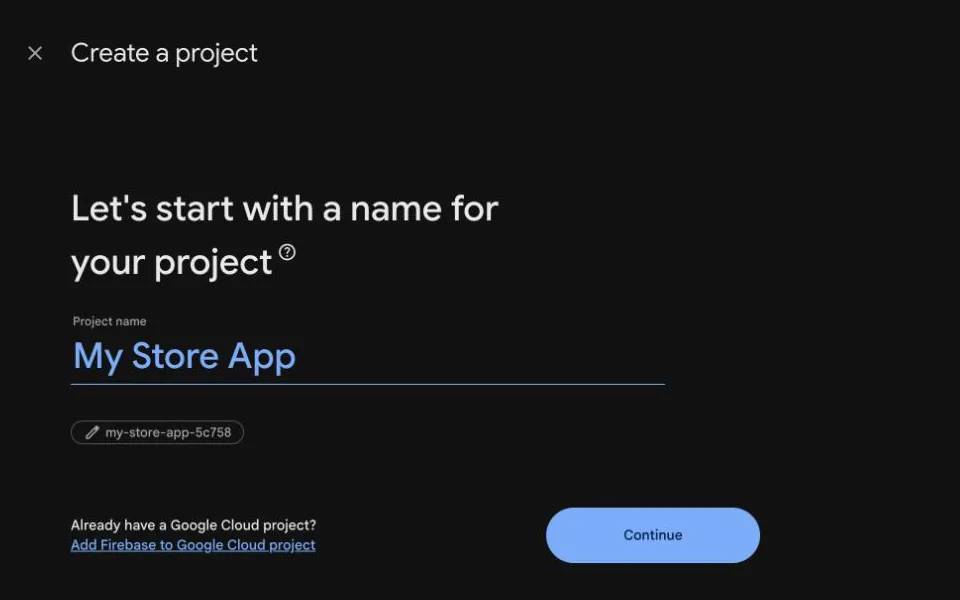
- Click Create a new Firebase project, enter a name such as your store's name, and click Continue.
- Google Analytics is optional, so you can turn it off. Click Create project, wait a moment, then click Continue.
Back on the Push notifications page, step 1 shows your app's package name. You use it for both the Android and the iOS app. If you haven't chosen one yet, set it right there.
2. Add your Android and iOS apps
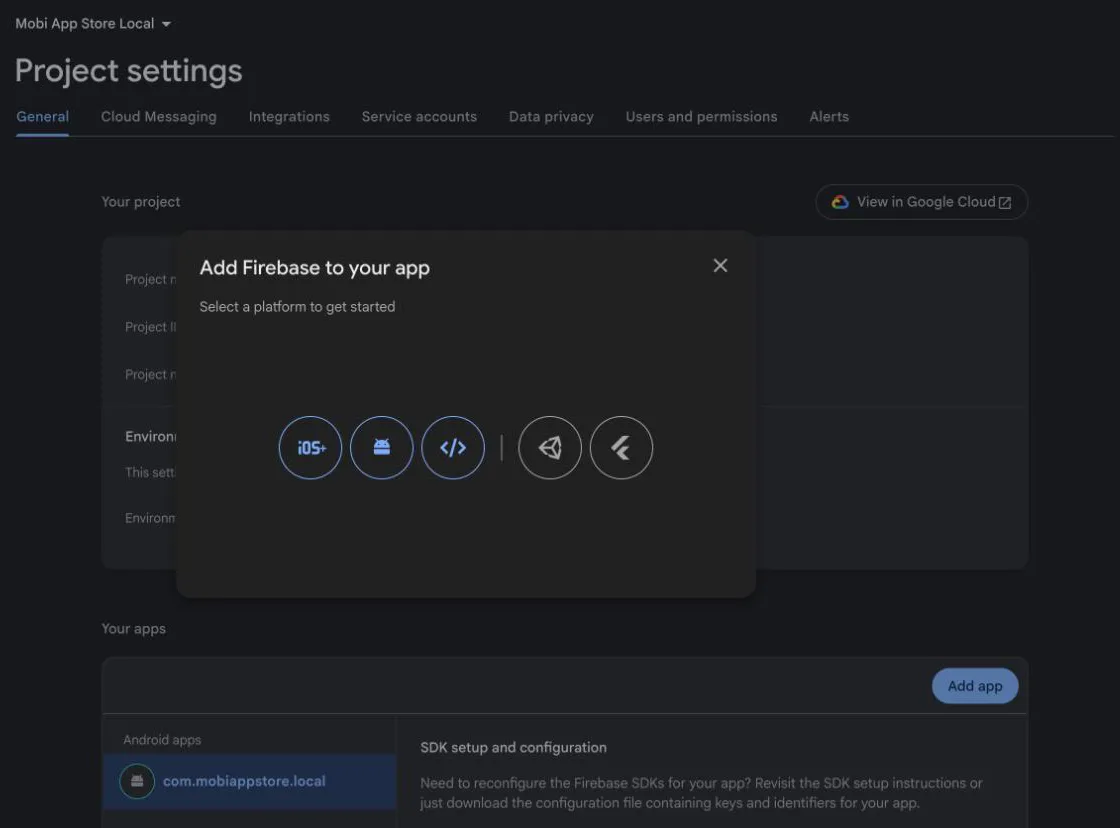
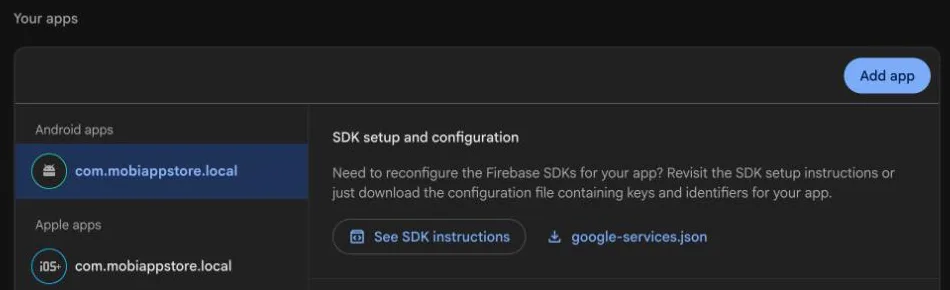
In Firebase, click the gear icon next to Project Overview, choose Project settings, and stay on the General tab. Under Your apps, click Add app.
Android
- Choose the Android icon.
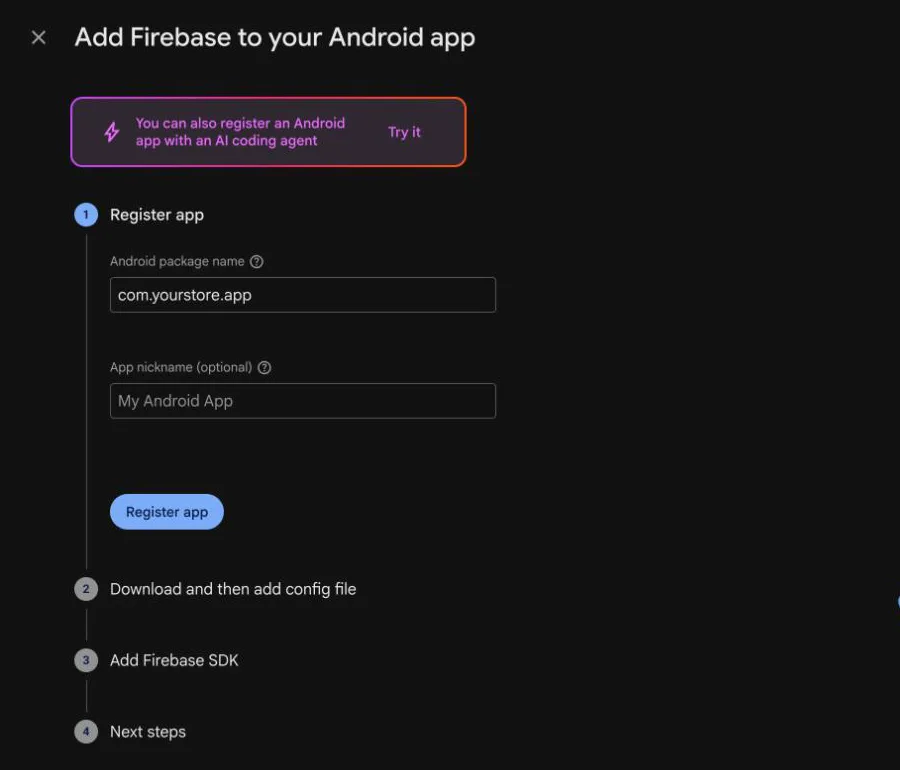
- Paste your package name into Android package name exactly as shown on the Push notifications page, then click Register app.
- Click Download google-services.json. You can skip the remaining Firebase steps.
- On the Push notifications page, drop the file into Upload google-services.json.
iOS
- Back in Project settings → General, click Add app again and choose iOS+.
- Paste the same package name into Apple bundle ID, then click Register app.
- Click Download GoogleService-Info.plist and drop it into Upload GoogleService-Info.plist on the Push notifications page.
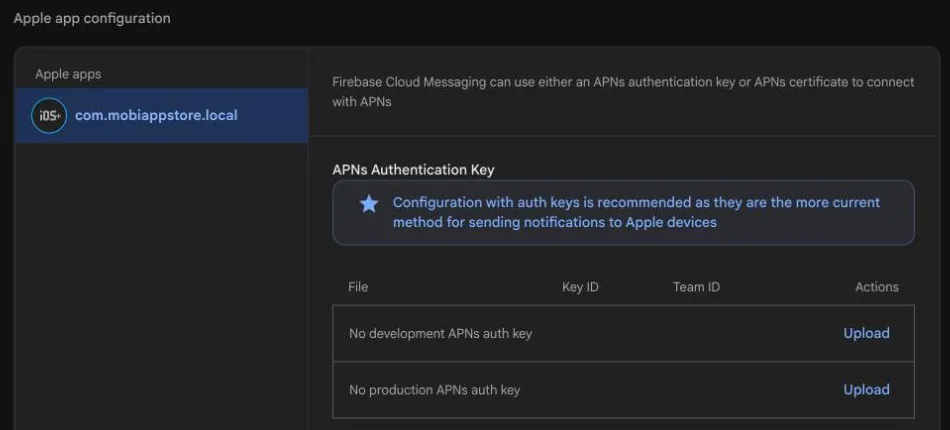
Let iPhones receive notifications: in Firebase, open the Cloud Messaging tab and scroll to Apple app configuration. Under APNs Authentication Key, click Upload and add your APNs key (.p8), with its Key ID and your Team ID. If you don't have a key yet, create one under Keys in the Apple Developer portal with Apple Push Notifications service (APNs) turned on.
3. Upload your private key
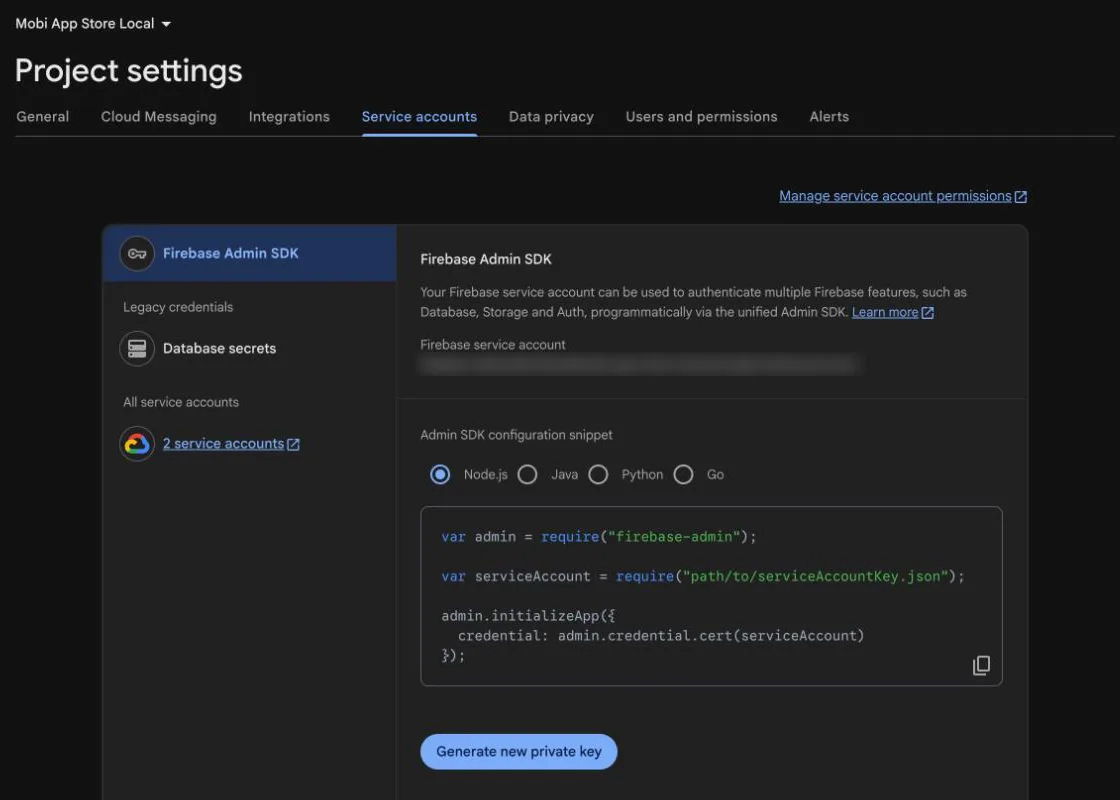
- In Firebase, open Project settings → Service accounts.
- Click Generate new private key, then Generate key. Your browser downloads a .json file with a name like
your-project-firebase-adminsdk-abc12.json. - On the Push notifications page, drop that file into Upload private key (.json).
You're connected
Once the key is uploaded, the page shows Firebase is connected and you can send your first notification. The Android and iOS files are used in your app's next build, so publish an update if your app is already live.
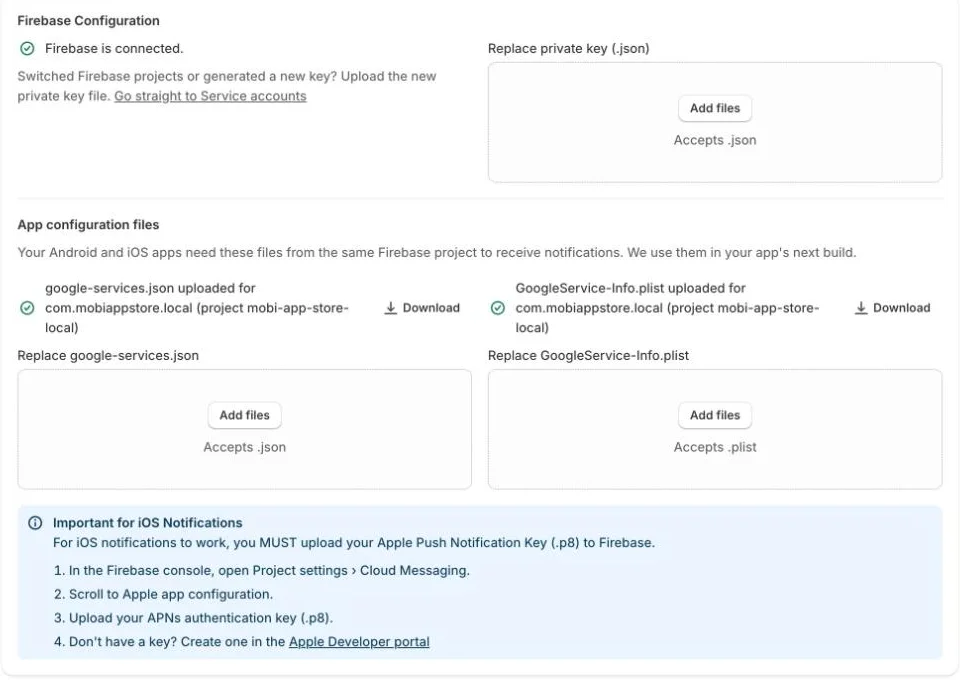
To switch Firebase projects later, upload the new project's private key and both app files in this section. All three must come from the same project.